
Settings and Financials
Track revenue in Financials
Financials is the first page you see after signing in. It shows the revenue of your projects for one year, which you can switch at the top.
Months and quarters
Each month has a bar. The coloured part is revenue from Signed projects in that month. The lighter part on top is your opportunities: projects that aren't signed yet. The amount under each bar and each quarter's total count signed revenue only.
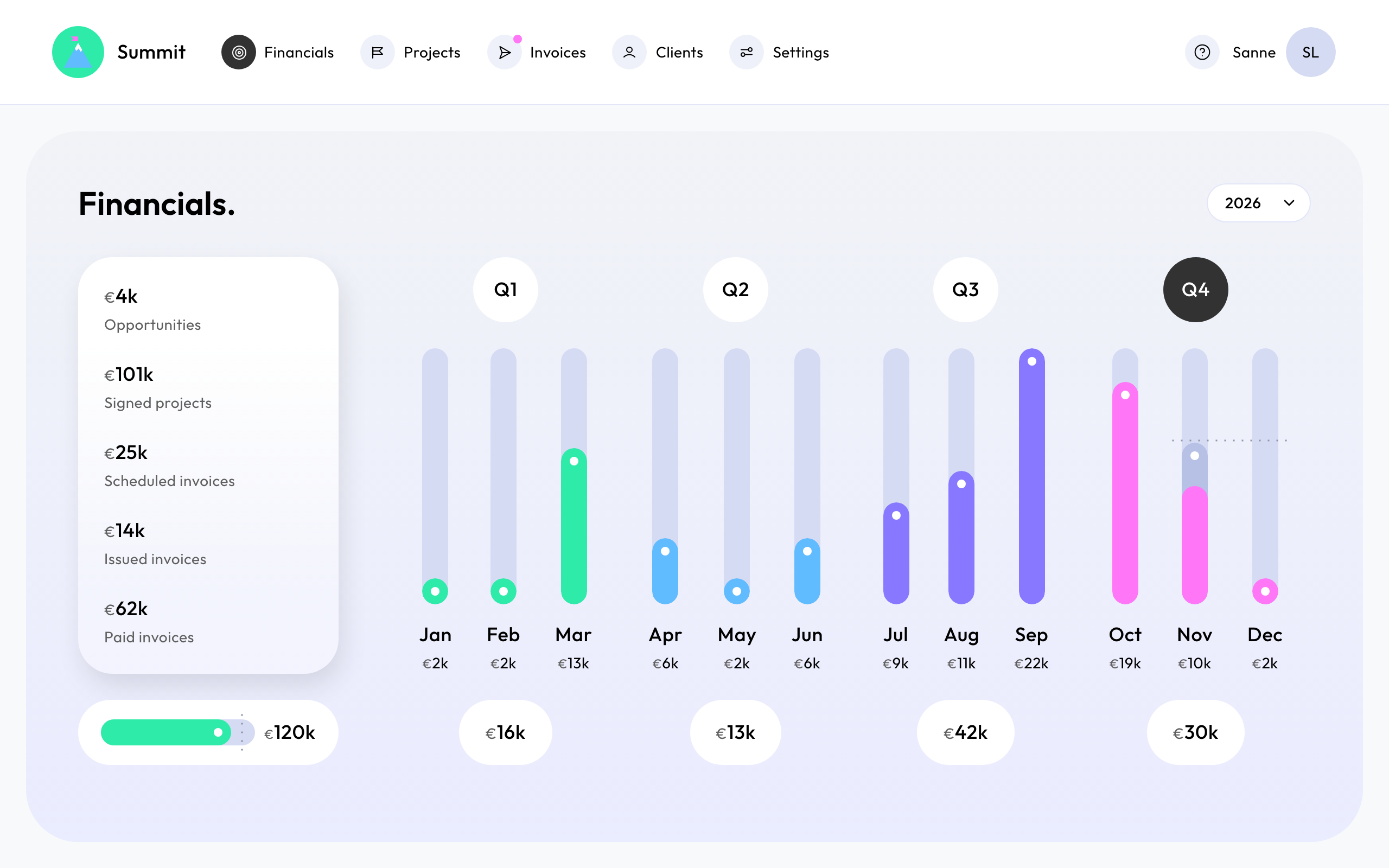
Revenue lands in the month its invoice is planned: a fixed price by its payment schedule, a retainer per month, a phase at its end.
The summary
For the selected year:
- Opportunities: what your unsigned projects could add.
- Signed projects: the revenue of your signed projects.
- Scheduled invoices, Issued invoices and Paid invoices: where your invoices are, from planned to sent to paid.
Voided invoices don't count.
Other currencies
Everything is shown in your Reporting currency, which you set in Settings. Projects in other currencies are converted with daily exchange rates. Your invoices themselves stay in the project's currency.
Year target
Choose Set a year target and enter the revenue you're aiming for, in your reporting currency. Summit shows how far your signed project revenue has come, and draws the monthly target as a dotted line through the bars. Opportunities don't count towards it.
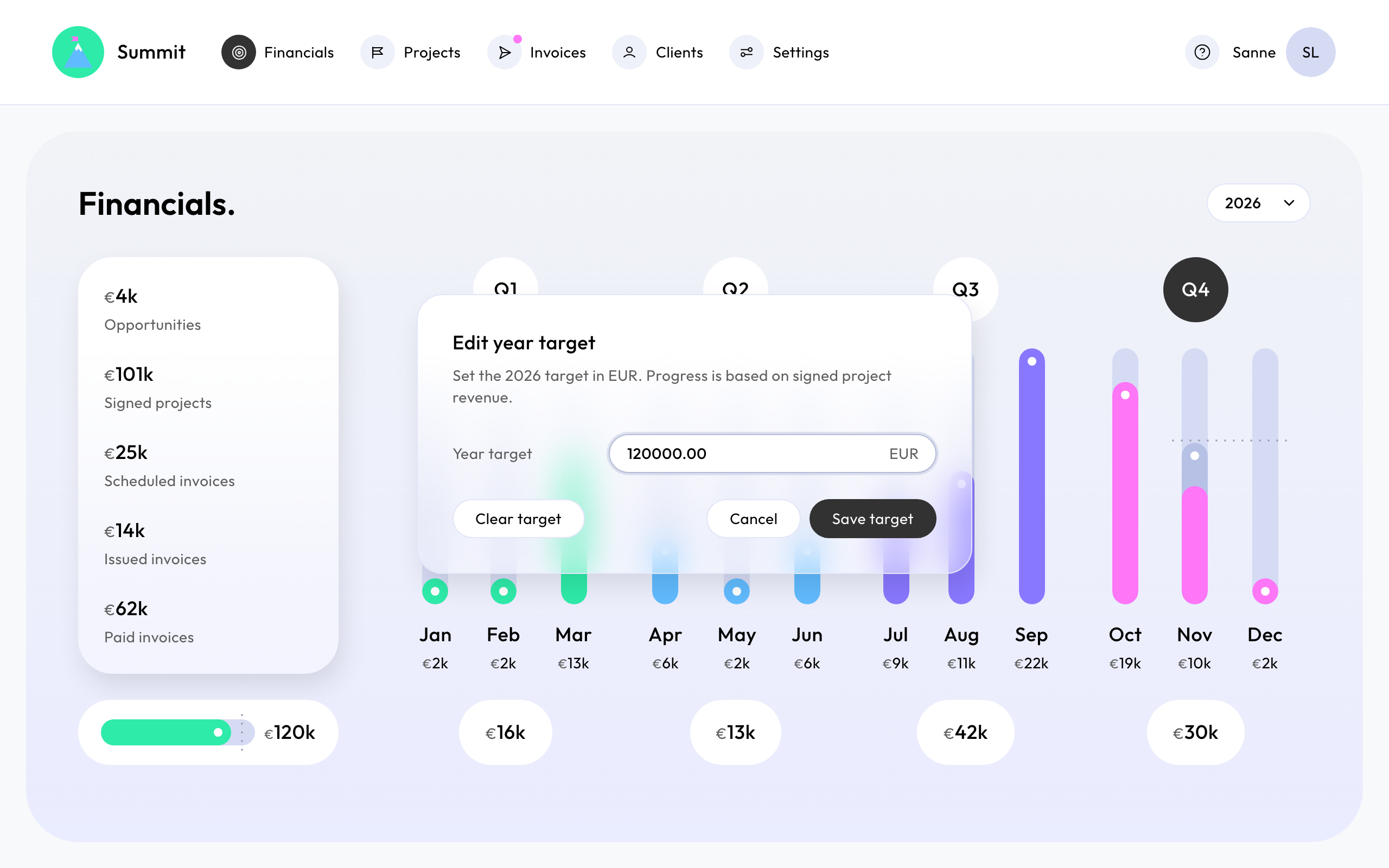
You can set a target for the current year and any year with project revenue. To change or remove it, choose the target and Save target or Clear target.