Invoices
Let clients pay online
Connect your own Mollie account and your clients can pay your invoices online, with iDEAL, Wero, a card or another method you offer. When a client pays, Summit marks the invoice paid by itself.
Connect Mollie
Go to Settings, scroll to Online payments and choose Connect Mollie. Mollie opens: sign in, or create a Mollie account, and approve Summit. You're back in Summit, connected. Take your time: if it takes longer than an hour, Summit asks you to connect again. Only the company owner can connect or disconnect.
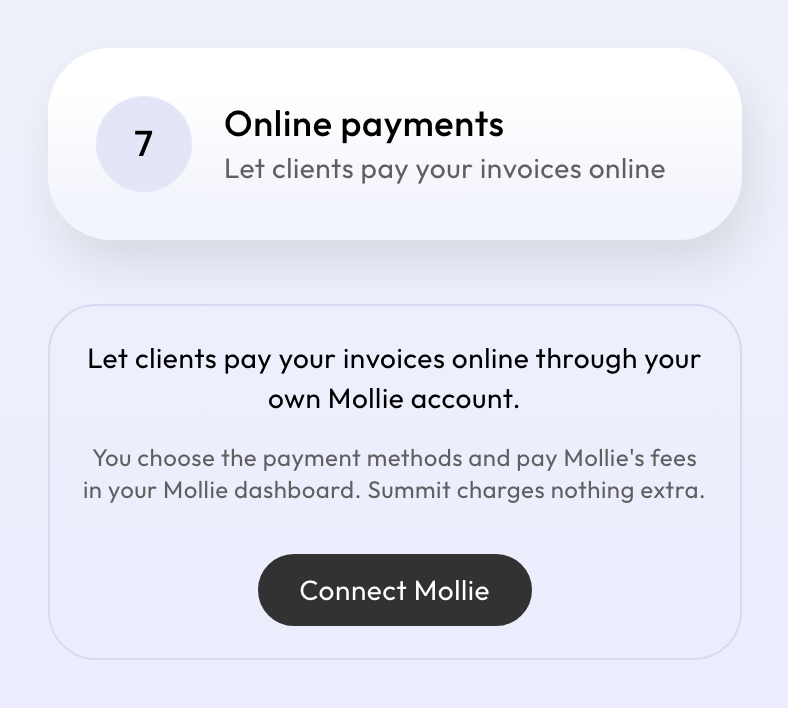
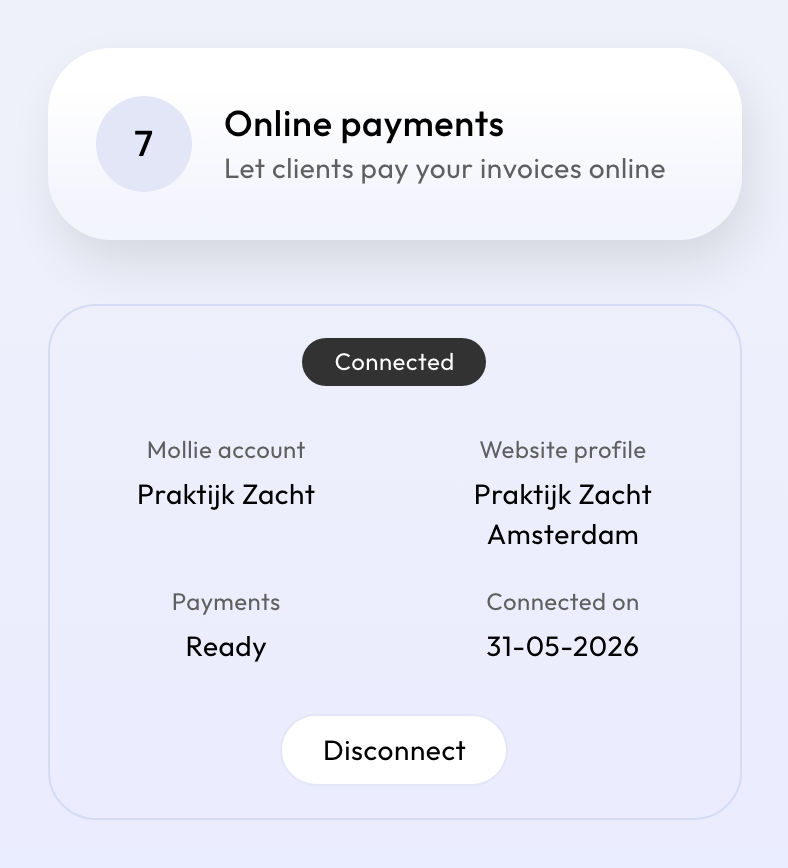
A new Mollie account has to be checked by Mollie before it can take payments. Until then the section says Not active yet, and invoices don't get the Pay online button yet.
You choose the payment methods, and pay Mollie's fees, in your own Mollie dashboard. The money goes straight to your Mollie account; Summit never holds it and charges nothing extra.
What your client sees
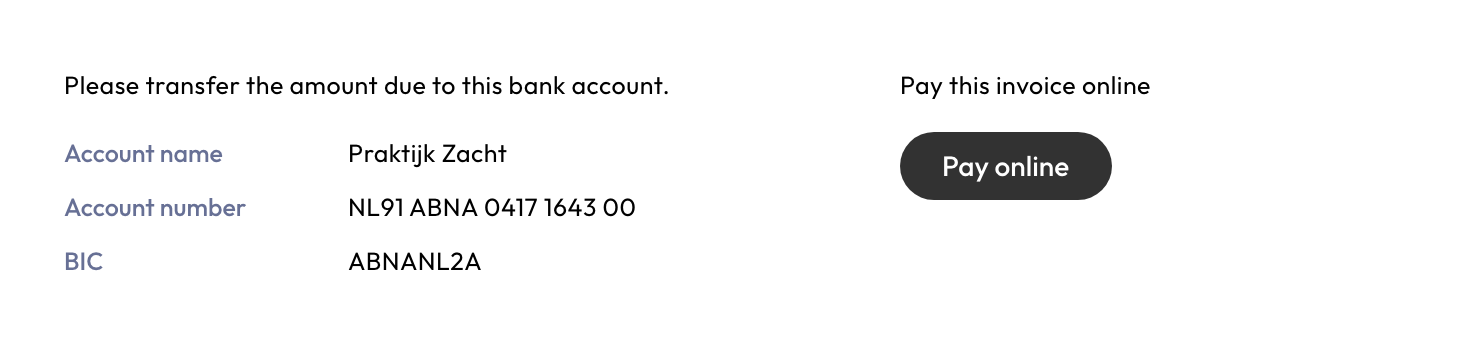
Invoices you send while connected, in euros, carry "Pay this invoice online" and a Pay online button next to your bank details. Your client clicks it in the PDF. The invoice email and the overdue reminder have a Pay online button. A reminder also gets the button for invoices you sent before you connected.
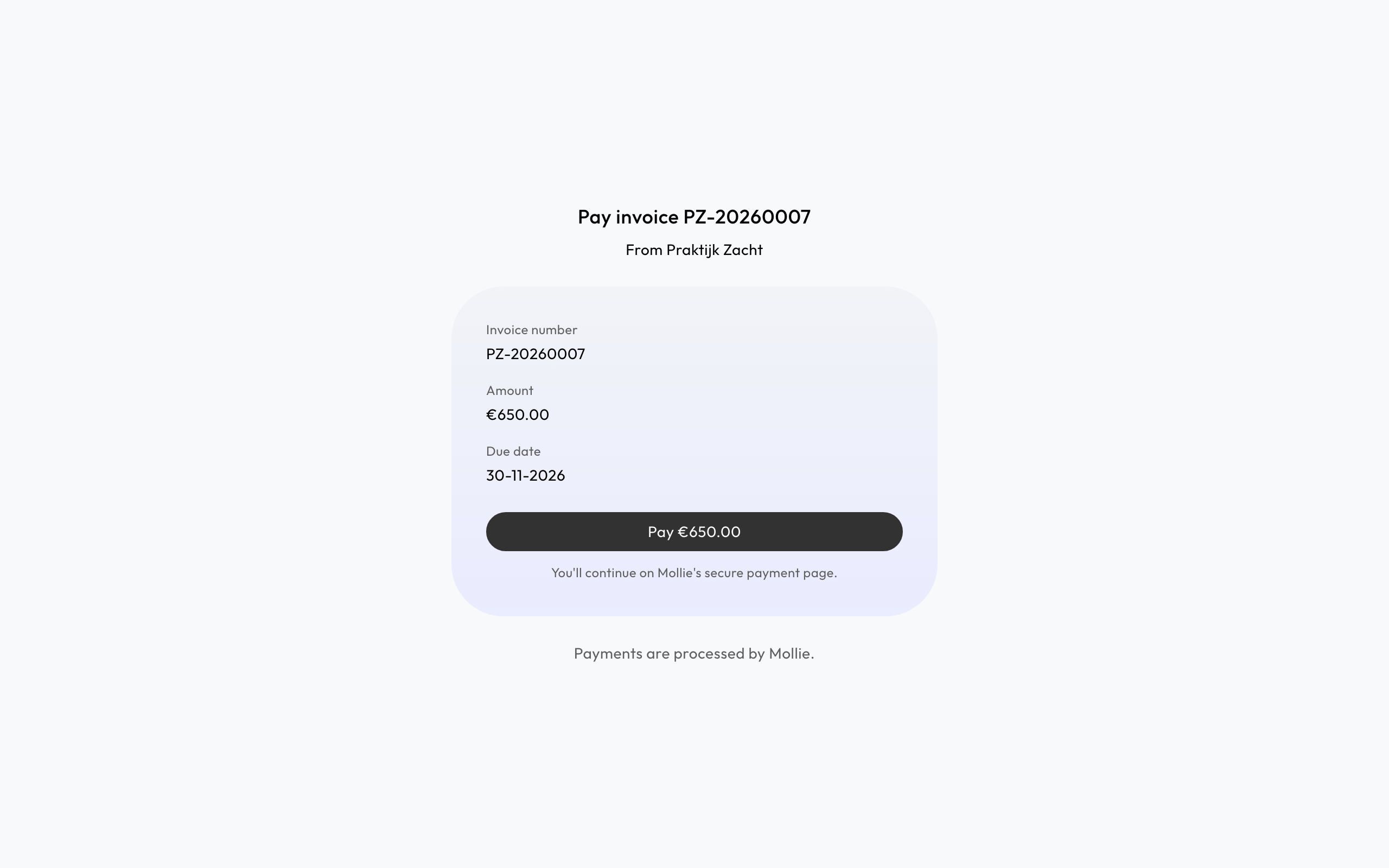
The button opens a page with your logo (if you've uploaded one), the invoice number, the amount and the due date, and a button that continues to Mollie's payment page for the exact amount. Paying by bank transfer keeps working as before.
The page tells your client when an invoice is already paid or was cancelled, and shows your bank details if you've disconnected Mollie.
Paid by itself
When Mollie confirms a payment, the invoice moves to Paid with the payment date. You can still choose Mark as unpaid; Summit asks first, because Mollie recorded the payment. After that, the pay link accepts a payment again until you void the invoice. If a client reverses a card payment (a chargeback), the invoice goes back to unpaid by itself.
You get a short email that the invoice is paid. Your client sees "paid" on the payment page.
Refunds are made in your Mollie dashboard. Summit records them, leaves the invoice as it is, and emails you. If the refund undoes the sale, mark the invoice as unpaid and void it: your client then gets a credit note. See Correct a sent invoice. You also get an email for a chargeback, for a payment on a cancelled invoice, for an invoice paid twice, and for a payment that doesn't match the invoice total.
Invoices in other currencies have no payment link: your client pays by transfer and you mark them paid, as described in Mark invoices as paid and send reminders.
Disconnect
Choose Disconnect in Online payments. Summit loses access to your Mollie account, new invoices get no link, and existing links show your bank details instead.
Switch to another Mollie account
Mollie connects the account you're signed in to on mollie.com. To switch: disconnect in Summit, sign out at my.mollie.com, then choose Connect Mollie and sign in with the other account. Mollie always shows which account you're about to connect before you approve.