
Invoices
Mark invoices as paid and send reminders
Summit doesn't see your bank account. When your client pays, you tell Summit.
Mark an invoice as paid
Open the invoice and choose Mark as paid. It moves to Paid, and the project's timeline shows a solid dot for it.

Made a mistake? Open the invoice and choose Mark as unpaid. It goes back to Issued.
Summit tracks an invoice as paid or unpaid, not partly paid. Leave it unpaid until the full amount is in.
Overdue invoices
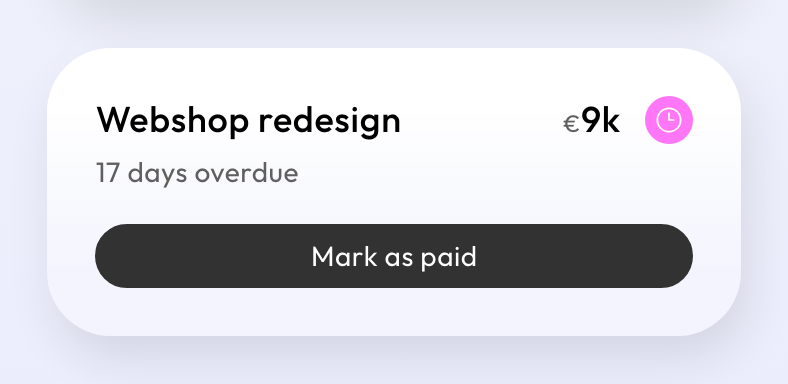
From the day after its due date, an unpaid invoice is overdue. Its card says how many days, the project's timeline shows a pink marker, and a pink dot appears next to Invoices in the menu.
Send a reminder
Open the overdue invoice and choose Send reminder. Your client gets an email reminding them of the invoice, with the same number and PDF, in the invoice's language. Replies go to your reply-to address.
- Reminders are never sent automatically: you decide when.
- You can send one reminder per invoice per day.
- A reminder doesn't include the UBL file or a copy to your bookkeeping, so nothing is booked twice.
Reminders count towards the daily number of client emails. See the FAQ on the help center for the limits.
If the amount was wrong, see Correct a sent invoice.