
Invoices
Correct a sent invoice
A sent invoice is a financial record, so you can't edit it. To correct one, you void it and send a replacement. Your client can get a credit note that cancels the original.
Before you start
Fix whatever was wrong where it comes from: the project (amount, dates, invoice line), the client (name, address, VAT number) or your company in Settings. The replacement uses the details as they are when you send it.
You can void an invoice that has been sent and isn't paid. If it is marked as paid, choose Mark as unpaid first. If its email couldn't be delivered, choose Resend first.
Void and replace
- Open the invoice and choose Void and replace.
- Enter a Reason. You'll see it with the voided invoice later.
- Choose whether to send a credit note to your client (and a copy to your bookkeeping email address).
- Confirm.
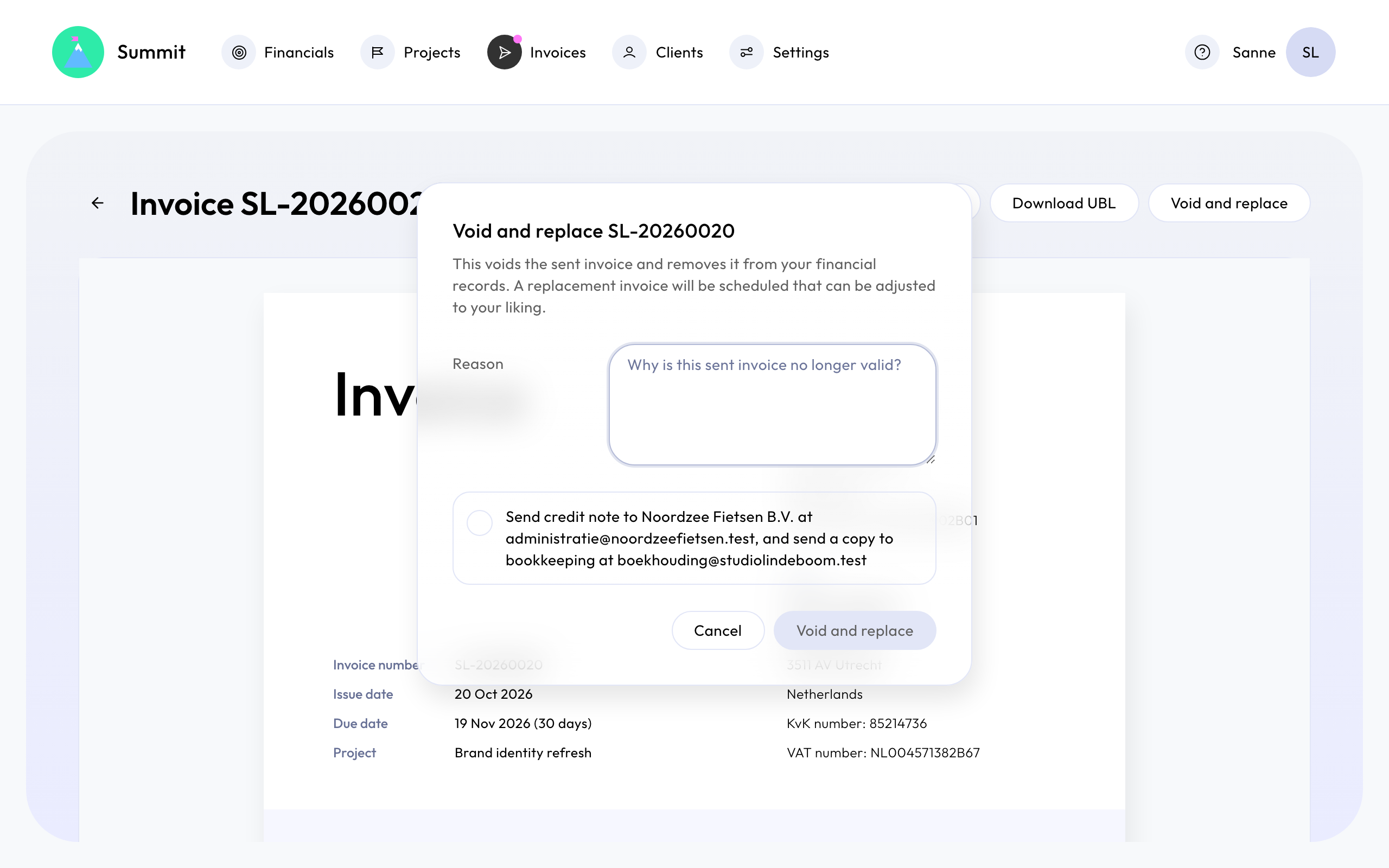
The original invoice moves to Voided. It keeps its number and stays visible, but no longer counts in Financials.
A replacement appears for the same moment in the project: under Ready, or Scheduled if its date is still ahead. Check it and send it like any other invoice. It gets a new invoice number when you send it. See Review and send an invoice.
Credit notes
A credit note cancels the full amount of the voided invoice and refers to its number. Your client gets it by email as a PDF (and UBL file, like their invoices), in the language of the original invoice. Credit notes have their own number sequence, starting with CN, for example CN-20260001.
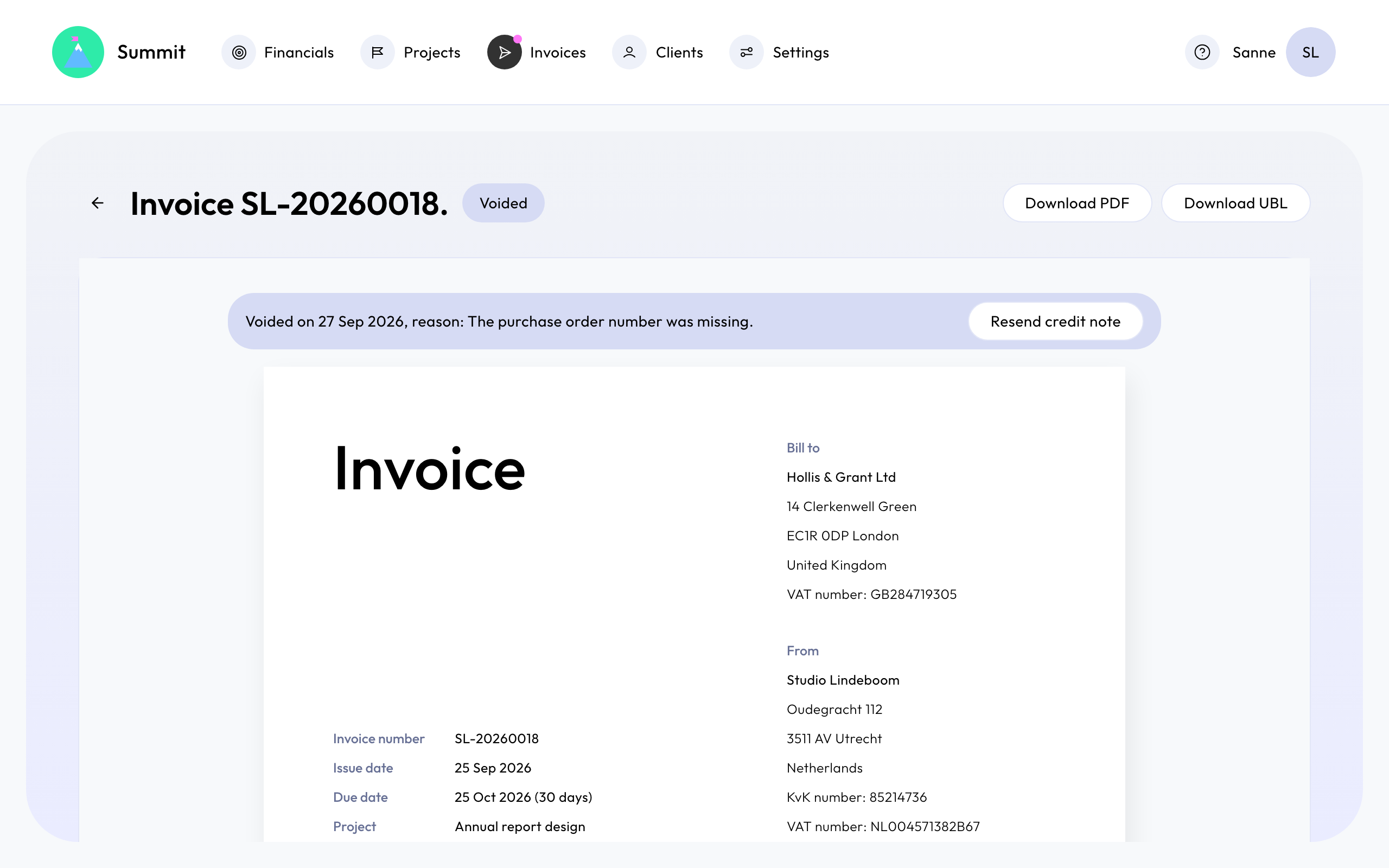
Didn't send one when you voided the invoice? Open the voided invoice and choose Create and send credit note. A voided invoice has at most one credit note. To send it again, choose Resend credit note.
Whether you need a credit note depends on your situation, for example whether your client has already booked the invoice. If you're not sure, ask your accountant.