
Clients
Add a client
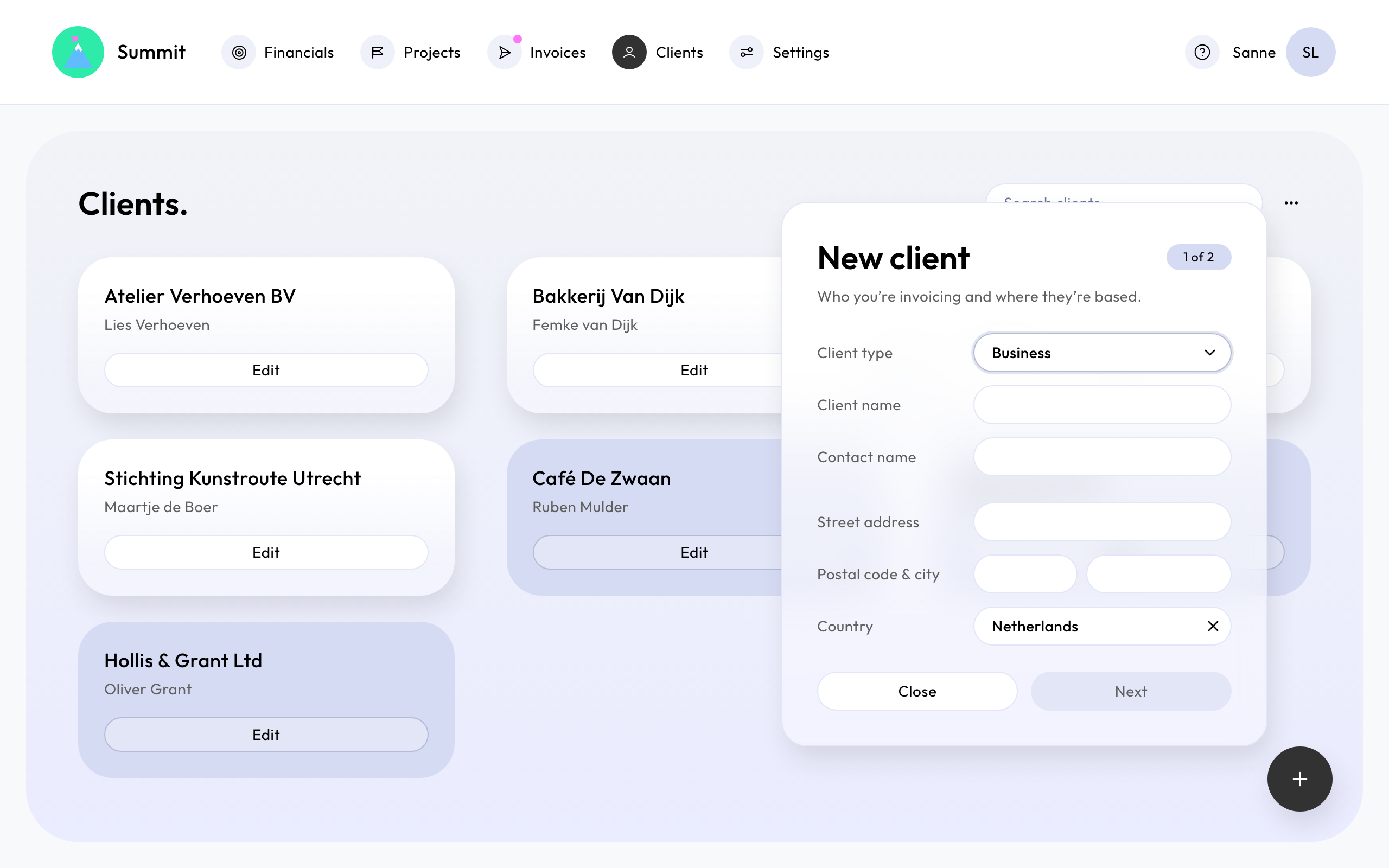
Go to Clients and choose New client. Adding a client takes two steps. Nothing is saved until you choose Create client at the end.
Step 1: who you're invoicing
- Client type: Business or Consumer. This affects which VAT treatment fits.
- Client name: the company or person name that goes on the invoice.
- Contact name: optional, the person you deal with.
- The address and Country. The country starts as your own. Change it for a client abroad, because it decides the suggested VAT treatment.
Step 2: invoicing
- Invoice email: This client’s invoices are sent to this address.
- Invoice files: PDF and UBL or just PDF. A UBL file lets your client's bookkeeping software read the invoice without retyping it. See Send invoices as PDF or PDF and UBL.
- Language: the language of this client's invoices and emails. Leave it on your company default unless this client needs another language. See Send a client invoices in another language.
- Default currency and Due period: these start from your company defaults in Settings.
- Tax treatment and VAT number: Summit suggests a treatment from your company's and your client's details. Check it before you finish. See Choose the right VAT treatment for a client.
You can change all of this later. Open the client and choose Edit. Invoices you've already sent don't change.