
Settings and Financials
Your company settings
Your company settings are what your clients see on every invoice, and the starting point for every client you add. You fill them in when you start with Summit. To change them later, go to Settings. Only the company owner can change them.
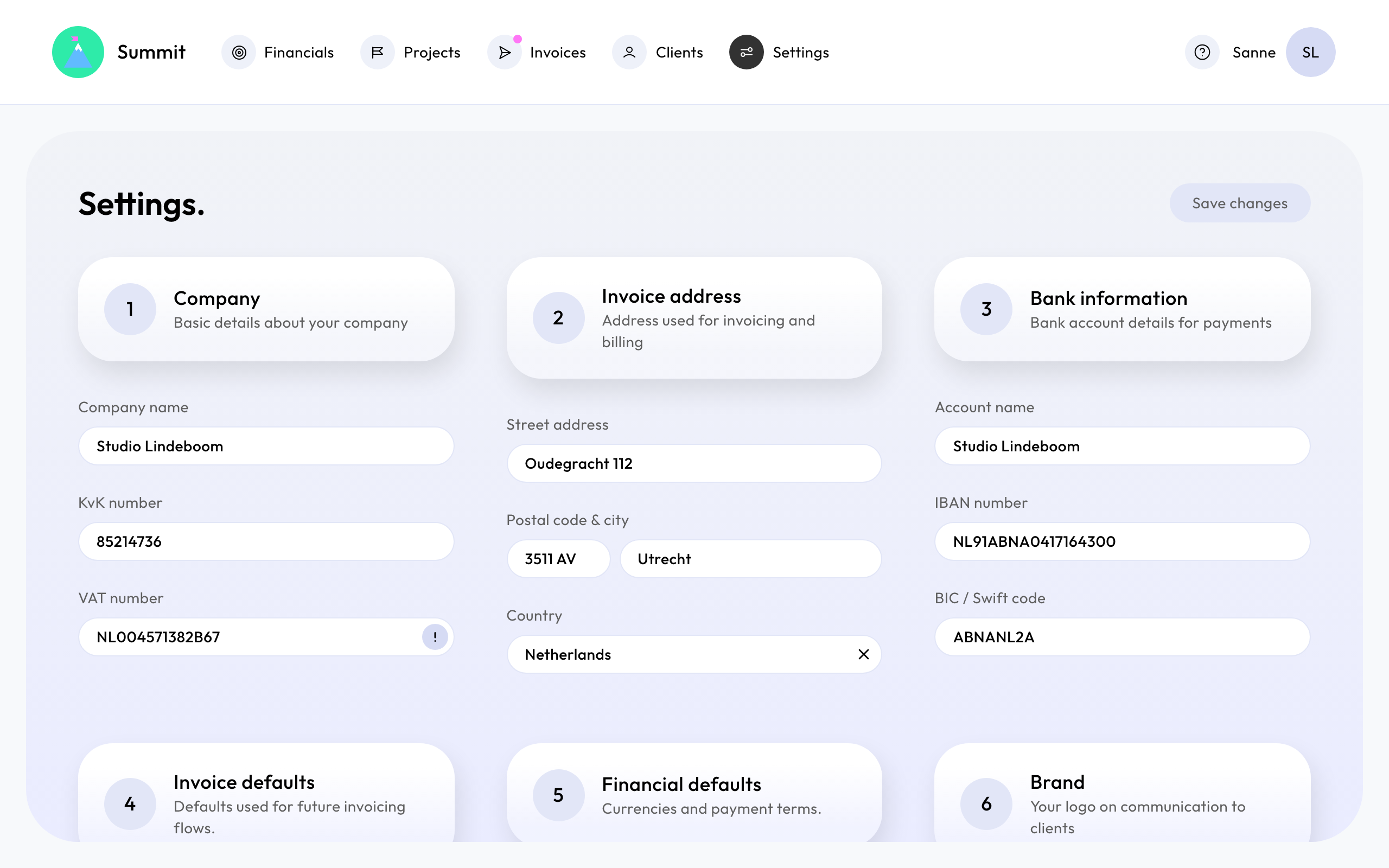
Company and Invoice address
Your Company name, your business registration number (the KvK number in the Netherlands), your VAT number and your address. Required on invoices if your business is VAT-registered.
Without a VAT number, Summit assumes you use the small business scheme and suggests that for your clients. See Choose the right VAT treatment for a client.
Bank information
The Account name, IBAN number and optionally the BIC / Swift code. They go on every invoice, so clients know where to pay.
Invoice defaults
- Reply-to email: invoices are sent from Summit's address in your company's name. When a client replies, the reply goes here.
- Bookkeeping email: Automatically sends a copy of each invoice to your bookkeeper. Use the inbox of your accountant or bookkeeping software.
- Invoice prefix: optional, up to 12 letters, numbers or dashes. Invoice numbers are the year and a sequence, for example 20260001, or ABC-20260001 with a prefix. Numbers are given when you send an invoice, so there are no gaps.
- Invoice language: English or Dutch. Each client can have its own language. Your own app language is set separately, in Profile.
Financial defaults
- Default currency and Default due period: the starting values for new clients.
- Reporting currency: the currency of Financials. See Track revenue in Financials.
Brand
Upload your logo to show it on invoices, credit notes and the emails to your clients. PNG or JPG, up to 2MB. Used in future previews, financial emails and newly generated PDFs.
What changes when you save
Invoices you haven't sent yet use the new details straight away. Invoices you've already sent keep the details they were sent with.